A song without a video is invisible on YouTube, Shorts, Reels and TikTok. The good news: every kind of music video can now be made with free, open-source software. This guide covers four types, from easiest to most ambitious, with the exact menus and settings. Everything was checked against each project's documentation on 25 October 2026.
Choose your type
| Type | Time | You need | Free tools |
|---|---|---|---|
| Visualizer | 30 minutes | Cover art | Astrofox or Shotcut |
| Lyric video | 1 to 2 hours | Lyrics, a background | Shotcut (auto-timed lyrics) |
| AI-generated scenes | An afternoon | A capable GPU | ComfyUI + Wan 2.2, then Shotcut |
| Performance video | A day | A phone and a location | Shotcut or Kdenlive |
Never used GitHub? Use the pink buttons: they go to each tool's download page or browser version, not to the source code. If you do land on a GitHub page full of files, read how to download free tools from GitHub (two minutes).
| Tool | Stars and licence | Get it |
|---|---|---|
| Shotcut | 15.4k, GPL-3.0 | Download (Win, Mac, Linux) |
| Kdenlive | 5.6k, GPL-3.0 | Download (Win, Mac, Linux) |
| ComfyUI | 142.6k, GPL-3.0 | Download desktop app |
| Wan 2.2 (AI video model) | 17.7k, Apache-2.0 | Runs inside ComfyUI |
| Astrofox | 2.0k, MIT | Download (Win, Mac, Linux) |
Before you start: prepare four things
- The final master as a WAV file, ideally at 48 kHz, the sample rate YouTube recommends. Never edit to a rough mix and swap later; timing shifts.
- Your lyrics in a plain text file, one sung line per line.
- The tempo (BPM) of the song. You will cut on it (see the beat maths below).
- The format: 1920 × 1080 for YouTube, 1080 × 1920 for Shorts, Reels and TikTok. Keep 30 frames per second unless you have a reason not to.
Type 1: A visualizer in 30 minutes
Load your song and cover into Astrofox, keep the Bar Spectrum, add a reactor so the cover pulses on the kick, and export an MP4. The full walkthrough is in make a music visualizer video with Astrofox. Already using Shotcut? Its Audio Spectrum Visualization and Audio Waveform Visualization filters do a simpler version inside the editor.
Type 2: A lyric video with automatic timing (Shotcut)
Since version 24.10, Shotcut can transcribe sung or spoken words into timed subtitles using Whisper, running on your own computer. Its Subtitle Burn In filter (added in 24.08) then draws those lyrics into the video, with an optional typewriter animation.
- New project. Install Shotcut (Windows, macOS, Linux), start a new project and choose a 1920 × 1080, 30 fps video mode.
- Add media. Drag your master WAV onto an audio track and your background (cover art, a slow AI clip or a looped video) onto the video track. Stretch the background to the length of the song.
- Auto-time the lyrics. Open the Subtitles panel and choose Speech to Text. Shotcut runs two jobs (export audio, then transcribe) and creates a new subtitle track. On busy mixes, transcribing a vocal-only stem gives far better timing; split one with a free stem splitter.
- Fix the words. Speech recognition mishears lyrics. Go line by line in the Subtitles panel and paste the correct text from your lyrics file. Shotcut's own notes warn that timings can start a little early, so nudge lines while listening.
- Burn them in. Select Timeline Output in the Filters panel, add Subtitle Burn In, choose your subtitle track, then set font, size, colour, outline and position. Try Typewriter by word for a classic lyric-video reveal.
- Export (see the export settings below).
Readability rules: no more than two lines on screen; a thick outline or a dark band behind the text; keep text inside the middle 80% of the frame so phone interfaces don't cover it; show each line a fraction of a second before it is sung.
Prefer Kdenlive? Kdenlive (version 26.08.2 for Windows, macOS and Linux) also generates subtitles with Whisper from its Speech Editor and edits them on a subtitle track (add one with Shift + S, jump between lines with Alt + arrow keys).
Type 3: AI-generated scenes with Wan 2.2 (ComfyUI)
Wan 2.2 is an open video model released under Apache-2.0 whose authors state they claim no rights over what you generate. Its 5B model makes 720p clips at 24 fps, and ComfyUI's documentation says it fits on an 8 GB graphics card thanks to offloading.
- Install ComfyUI: download the desktop app from comfy.org/download, install it like any program, and let it finish its first-run setup. You don't need anything from the Wan 2.2 GitHub page itself.
- Open the template "Wan 2.2 5B Video Generation" from the workflow templates.
- Download the three model files from Comfy-Org's Wan 2.2 page on Hugging Face and place them as ComfyUI's guide says:
wan2.2_ti2v_5B_fp16.safetensorsinmodels/diffusion_models,wan2.2_vae.safetensorsinmodels/vae, andumt5_xxl_fp8_e4m3fn_scaled.safetensorsinmodels/text_encoders. - Start from your cover art for a consistent look: press Ctrl + B to enable the Load Image node and upload the cover. This turns it into image-to-video.
- Write the prompt with this formula: subject + action + camera + light + style. Example: "a lone figure walking through neon rain at night, slow dolly forward, purple and pink light, 35 mm film look".
- Set size and length in the
Wan22ImageToVideoLatentnode, then click Run. Each run gives one short clip. - Make a shot list of 10 to 20 clips that follow the song: calm shots for verses, energetic ones for the chorus. Reuse the same image or style words to keep characters and colours consistent.
- Edit them on the beat in Shotcut or Kdenlive (next section), with your master as the only audio.
The larger Wan 2.2 14B models give better motion but need far more video memory. Lightricks' LTX models are another open option inside ComfyUI.
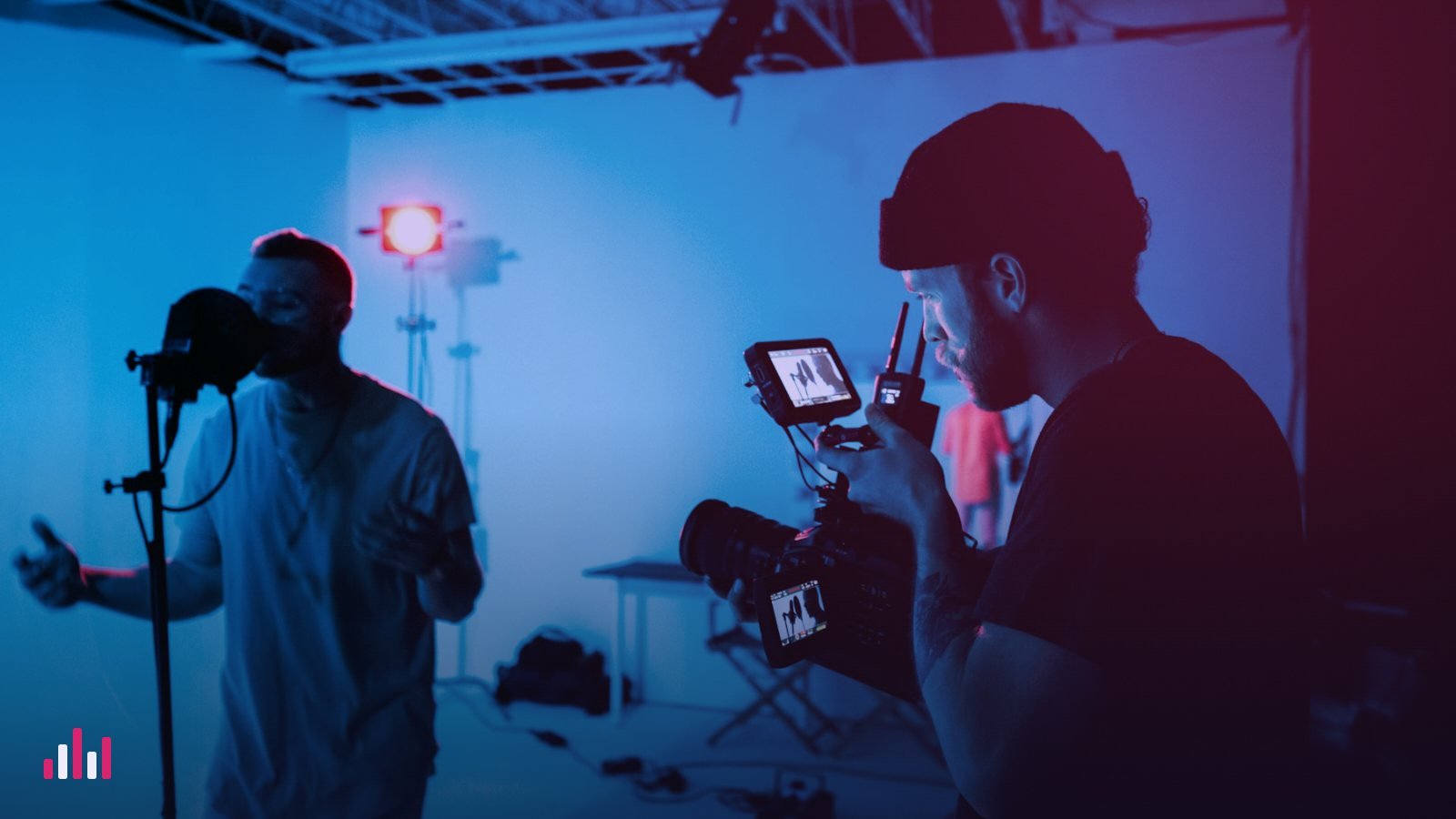
Type 4: A performance video shot on a phone
- Shoot to playback. Play the final master loudly from a speaker and sing or play along. The camera audio is only a guide for syncing.
- Clap first. Start every take with one sharp clap on camera, after a few seconds of song. The spike in the waveform makes syncing easy.
- Cover the whole song several times: a wide shot, a close-up, a moving shot, and details such as hands and instruments. More angles mean more choices when cutting.
- Lock the settings: landscape, 1080p or 4K, 30 fps, exposure locked, light from the front or side of the face.
- Sync in the editor: put the master on its own track, line up each take using the clap or the waveform peaks, then mute the camera audio.
- Cut between takes on the beat using the table below.
Cutting on the beat: the maths
One beat lasts 60 ÷ BPM seconds. Cuts on the first beat of a bar, or every 2 or 4 bars, feel musical; cuts on random frames feel amateur.
| Tempo (BPM) | One beat | One bar (4 beats) | Four bars |
|---|---|---|---|
| 90 | 0.667 s | 2.67 s | 10.7 s |
| 100 | 0.600 s | 2.40 s | 9.6 s |
| 120 | 0.500 s | 2.00 s | 8.0 s |
| 124 | 0.484 s | 1.94 s | 7.7 s |
| 140 | 0.429 s | 1.71 s | 6.9 s |
Tips: cut slower in verses (every 4 bars) and faster in the chorus (every bar); put a big change exactly on the first beat of the chorus. Not sure of your tempo? Tap along in our metronome.
Export settings
| Setting | Value | Why |
|---|---|---|
| Container and codec | MP4, H.264 | YouTube's recommended format |
| Audio | AAC, 48 kHz, 384 kbps stereo | YouTube's recommended stereo settings |
| Bitrate | About 8 Mbps at 1080p 30 fps; 12 Mbps at 60 fps | YouTube's recommendation for 1080p SDR |
| Frame rate | Same as your project, constant | Avoids stutter and sync drift |
Export a 20-second test first and check that lyrics and cuts land on time from start to end.
Thumbnail, upload and AI disclosure
- Thumbnail: YouTube suggests 3840 × 2160 pixels (minimum 640 wide) at 16:9 for videos, and 9:16 for Shorts, as JPG or PNG. A still from the video with your title in large type works well.
- Shorts: export a 1080 × 1920 version of the hook, 15 to 60 seconds, and link it to the full video.
- AI disclosure: YouTube asks creators to disclose realistic AI-generated or altered content, and lists AI-generated music that is the main focus of a video as an example. In YouTube Studio, set AI use under Attributes to Yes when that applies. Clearly fantastical animation doesn't need the label.
- Rights: use only footage, images and audio you own or have licensed. YouTube's Content ID matches audio, so uncleared samples can get the video claimed.
Haven't finished the song yet? Start with the free song workflow.
Questions people ask
What is the easiest music video to make for free?
A visualizer: load your song and cover art into Astrofox and export an MP4 in about 30 minutes. A lyric video in Shotcut is the next step up.
How do I sync lyrics to music automatically?
In Shotcut 24.10 or later, use Speech to Text in the Subtitles panel to create timed lyrics with Whisper, correct the words, then add the Subtitle Burn In filter to the Timeline Output.
Can I make an AI music video on my own computer?
Yes. ComfyUI with the Wan 2.2 5B model generates 720p clips locally; ComfyUI's documentation says it fits on an 8 GB graphics card with offloading. Then edit the clips on the beat in a free editor.
Do I have to label an AI music video on YouTube?
YouTube asks for disclosure of realistic AI-generated or altered content, including AI-generated music that is the main focus of the video. Set AI use to Yes in YouTube Studio when that applies.
Sources
- Shotcut on GitHub
- Shotcut features
- Shotcut forum: Subtitle Burn In filter (24.08)
- Linuxiac: Shotcut 24.10 adds speech to text
- Kdenlive on GitHub
- Kdenlive download (26.08.2)
- Kdenlive docs: speech to text
- Kdenlive docs: subtitles
- Wan 2.2 on GitHub
- ComfyUI docs: Wan 2.2
- LTX-Video on GitHub
- YouTube recommended upload encoding settings
- YouTube custom thumbnails
- YouTube: disclosing altered or synthetic content