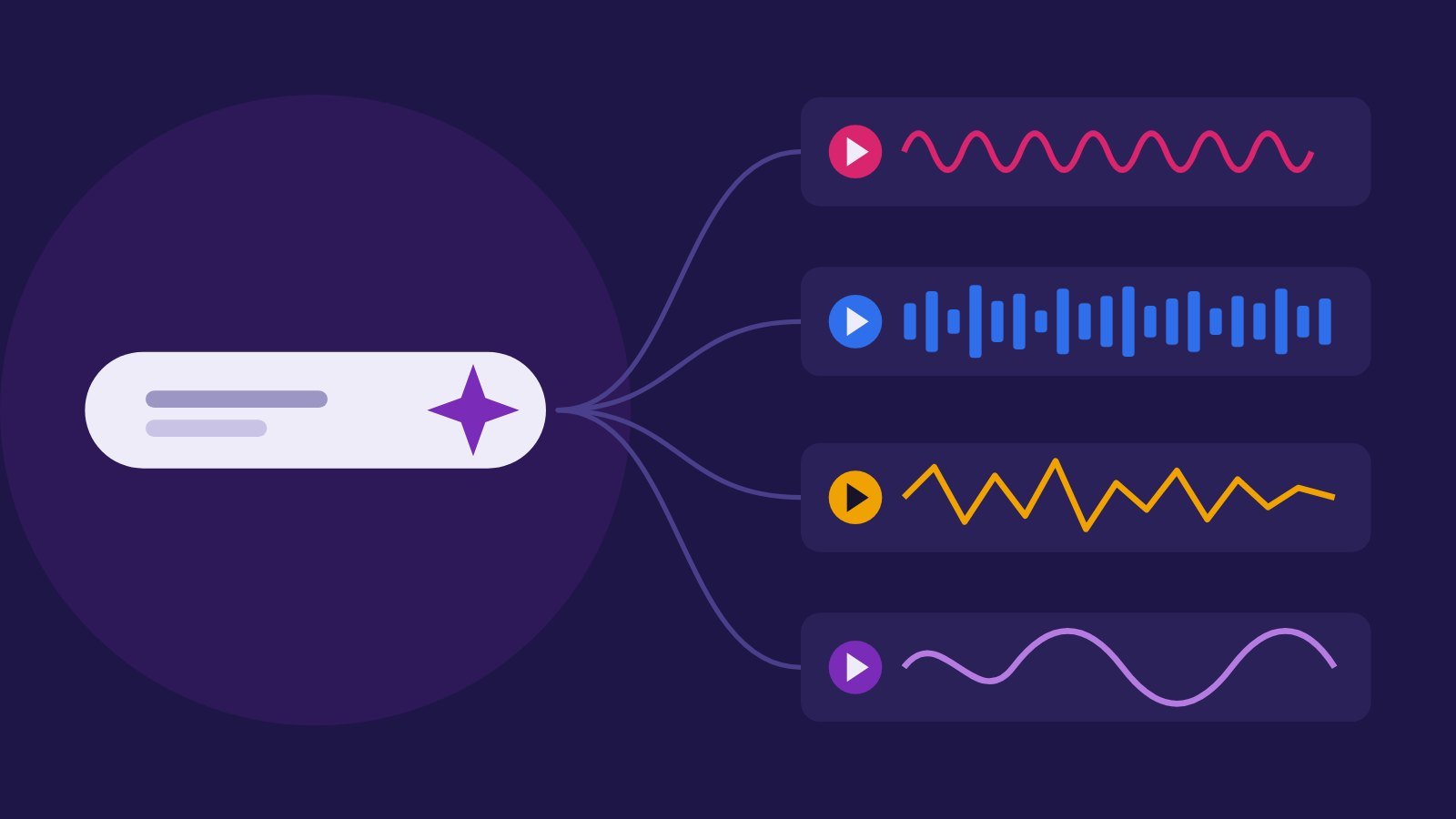
ACE-Step 1.5 is an open-source model that turns a style description and your lyrics into a full song with vocals, from 10 seconds to 10 minutes long, in more than 50 languages. It runs on your own computer, the code is MIT-licensed, and it had about 13,900 stars on GitHub on 25 October 2026. Unlike online generators, there is no credit limit and your lyrics never leave your machine.
What you need
- Best: an NVIDIA GPU. The project says the standard model runs in under 4 GB of video memory; the larger XL model wants 12 GB or more.
- Also works: Apple silicon Macs, AMD (ROCm), Intel GPUs and plain CPU, but CPU is slow.
- About 10 GB of free disk space for the program and model downloads.
Step 1: Install
Never used GitHub? You don't need to understand the files on ACE-Step's GitHub page. Follow the portable steps below, or read how to download free tools from GitHub.
Easiest: the portable package (no coding)
ACE-Step's official README links ready-made packages with everything pre-installed:
- Download: Windows package (.7z) or macOS package (.zip). These are the links in the README on the official GitHub page; the project warns about look-alike sites, so don't download it anywhere else.
- Unpack: on Windows, a .7z file needs the free 7-Zip: right-click the file, choose 7-Zip, then Extract Here. On a Mac, double-click the .zip.
- Start: open the unpacked folder and run the launch file:
start_gradio_ui.baton Windows,start_gradio_ui_macos.shon an Apple silicon Mac. If the names differ in your version, look for a file starting with "start". - Wait for the first run: a black window shows progress while the AI models download. When it is ready, open
http://localhost:7860in your browser. Keep the black window open while you use it.
Standard install (if you are comfortable with a terminal)
Install the uv Python tool, then in a terminal:
git clone https://github.com/ACE-Step/ACE-Step-1.5.git
cd ACE-Step-1.5
uv sync
uv run acestep
Models download automatically on the first run. When it's ready, open http://localhost:7860 in your browser.
Step 2: Make your first song in Simple mode
- Choose Simple mode and describe the song in plain English, for example: "a warm Afro house track about leaving the city at sunrise, female vocal".
- Pick the vocal language, or tick Instrumental.
- Click Create Sample. The model writes a caption, lyrics and settings for you to review.
- Click Generate Music. By default you get 2 variations; listen to both.
Step 3: Use your own lyrics in Custom mode
For a song that is really yours, switch to Custom and fill in two fields.
Music Caption: genre, instruments, mood and tempo feel. Be specific: "deep house, 122 BPM feel, warm Rhodes chords, log drum, shaker, breathy male vocal, late-night mood".
Lyrics: put each section tag in square brackets on its own line, with a blank line between sections:
[Verse 1]
Streetlights fading in the rear view
Every corner sings a song I knew

[Chorus]
Take me where the morning starts
Somewhere new to rest my heart

[Verse 2]
...
Then set what you know and leave the rest on Auto:
| Setting | Range | Tip |
|---|---|---|
| Audio Duration | 10 to 600 seconds | Set it explicitly for full songs, for example 180 |
| BPM | 30 to 300 | Match your DAW project if you'll add parts later |
| Key Scale | for example "Am" or "F# minor" | Use our scale helper to write parts in the same key |
| Time Signature | 2, 3, 4 or 6 | 4 for most pop and dance music |
| Batch Size | 1 to 8 | Generate 2 to 4 and keep the best |
| Seed | −1 is random | Fix the seed to reproduce a result you like |
Step 4: Fix weak sections with Repaint
Love the song except one line? Use Repaint: load the generated audio as Source Audio, set the start and end time of the weak part in seconds, write a caption for the new section and generate. Everything outside that window stays the same. The project's guide also suggests Repaint to change lyrics in one section or to extend a song. Remix restyles a whole track while keeping its structure.
Step 5: Make it yours
An AI draft is a starting point. To turn it into your own work:
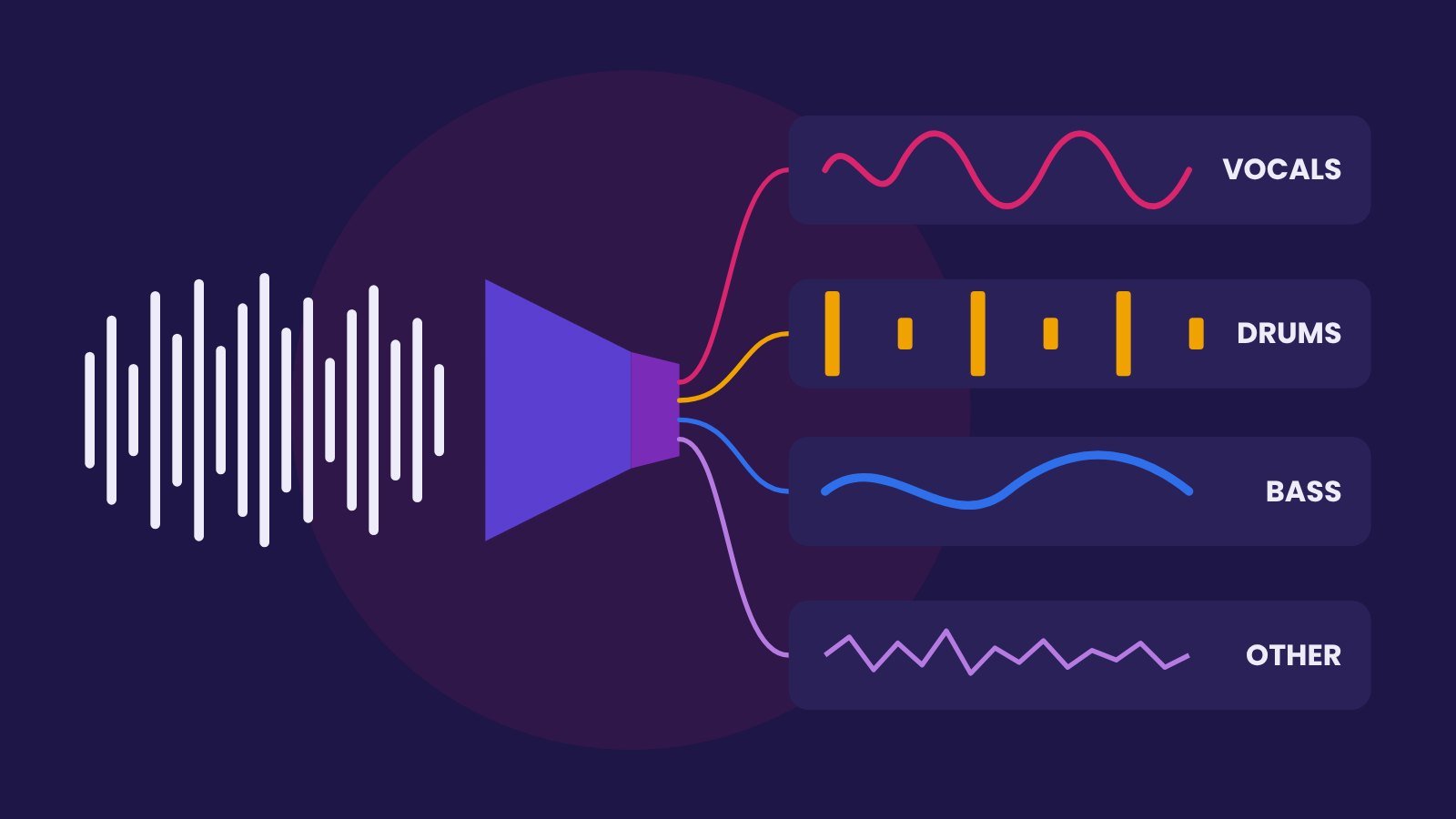
- Split the draft into stems with the stem separation built into ACE-Step or a free stem splitter.
- Keep only what you love, for example the vocal topline, and replace the rest with parts you play or program in your DAW.
- Record your own vocal over the arrangement if you can sing; the AI vocal becomes a guide.
- Mix and master: follow the full free workflow.
Rights and responsible use
- The MIT licence covers the code. The project doesn't state who owns generated audio; it asks users to check originality, disclose AI involvement and get permission when adapting protected material.
- Don't prompt for a real artist's name or voice, and don't feed it someone else's recording to "cover" unless you have the rights.
- Distributors and platforms have their own AI rules. Check them before you upload, and keep your prompts, lyrics and dates as a record.
- For how the label lawsuits are going, see AI music and the major labels.
Questions people ask
Is ACE-Step free?
Yes. ACE-Step 1.5 is open source under the MIT licence and runs on your own computer, with no credits or subscription.
Can ACE-Step run without an NVIDIA GPU?
Yes. It also supports Apple silicon Macs, AMD and Intel GPUs and CPU, though generation is much slower on CPU.
How do I add my own lyrics?
Use Custom mode and write lyrics with section tags such as [Verse 1] and [Chorus] on their own lines, with a blank line between sections.
Can I release songs made with ACE-Step?
The project doesn't state who owns the output. Check your distributor's AI policy, avoid imitating real artists, disclose AI use and keep records of how you made the track.